User guide
Finding and downloading files
A walk through the app from signing in to receiving your zip. Your archive's deployment may look slightly different, but the flow is the same.
- 1
Sign in
Open your archive's downloader and sign in. Access uses your institution's single sign-on (OIDC), so you log in with the account you already have — no separate password to manage.
- 2
Search and narrow with facets
Use the search bar to find material, then refine with the facets in the sidebar — by collection, language, country, collector, identifier or entity type. Results update as you go.
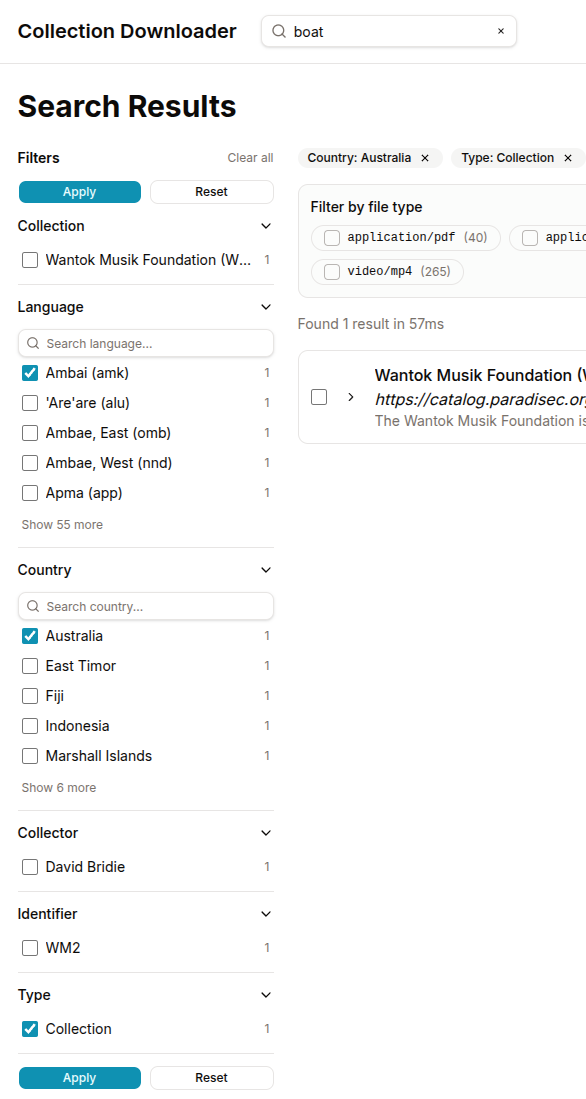
Narrow results by collection, language, country, collector and more. - 3
Choose your quality tier
Many items exist in more than one format. Pick the archival tier for preservation masters (WAV, MKV, MXF, TIFF), or the compressed tier for smaller everyday copies (MP3). The filter applies as you browse, so you only ever select the versions you want.
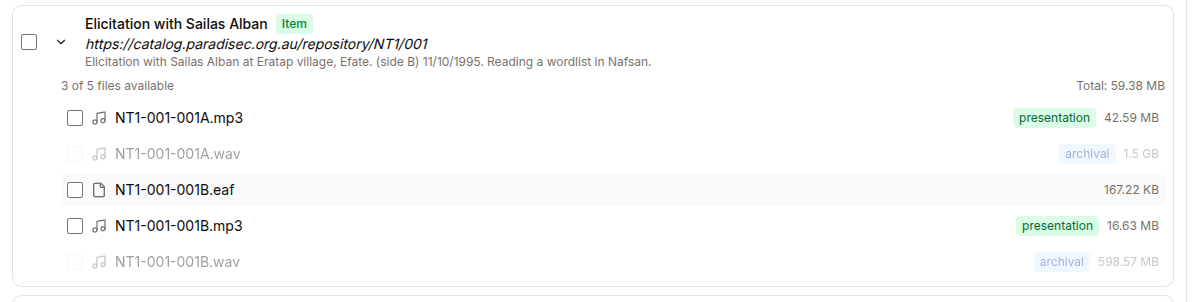
Switch between archival and compressed formats. - 4
Select files and watch the totals
Expand a collection into its items and files, and tick the ones you want. Running totals show the size of your selection at every level — file, item and collection — so there are no surprises before you export.

Sizes add up live as you build a selection. - 5
Request your export
When you are happy with the selection, request the export. The app queues a background job that downloads your files, zips them, and uploads the archive — you do not need to keep the page open.
- 6
Track progress
The export status page shows the job moving through its phases — archiving the files, then uploading the zip. Large selections simply take a little longer.
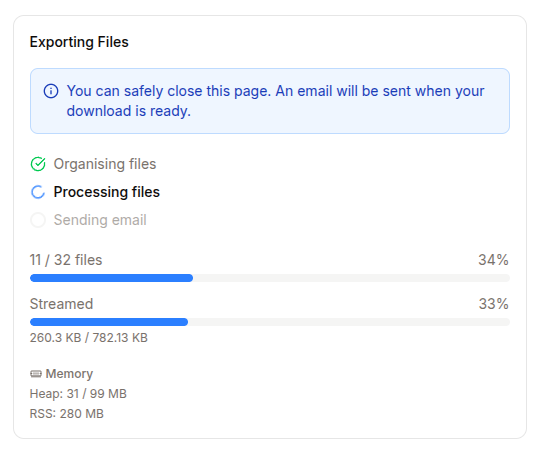
Live progress while your zip is built and uploaded. - 7
Download your zip
When the job finishes you can download the zip straight away, and a secure, time-limited link is also emailed to you in case you have closed the page.
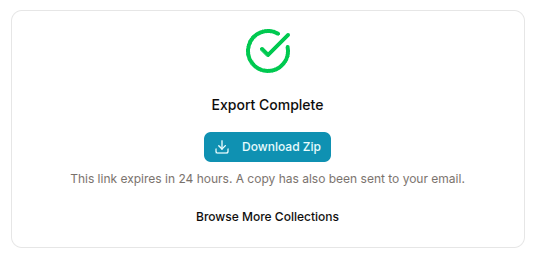
Download your zip — a copy of the link is also sent to your email.
Running your own instance?
See the self-hosting guide for how to deploy the downloader with Docker and connect it to your RO-Crate API, identity provider and AWS account.